Apple CarPlay: Features, Setup, Apps, and Supported Cars
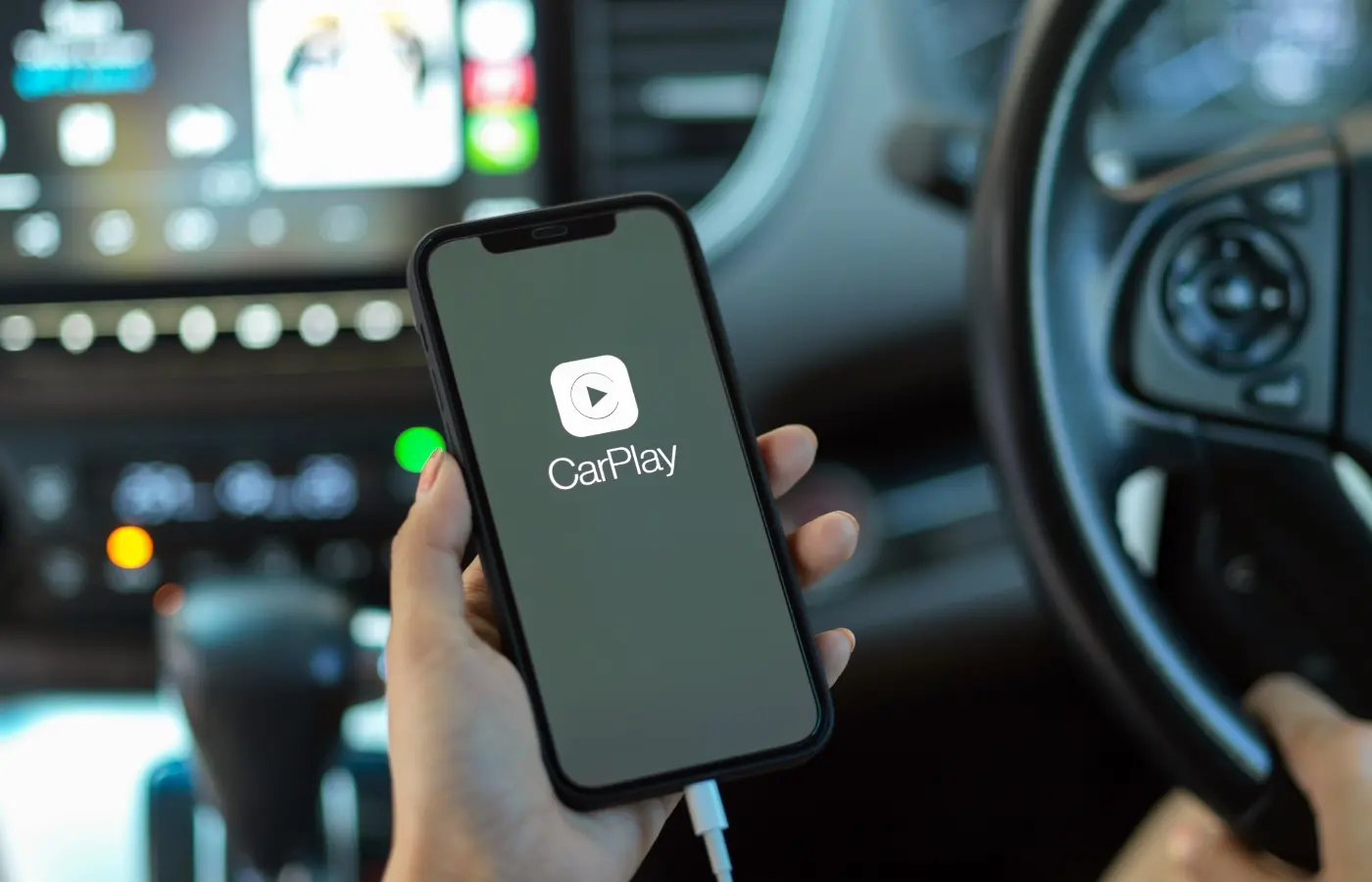
Apple CarPlay is a system that mirrors your iPhone onto your car's display screen. It lets you access navigation, music, messages, and other apps while driving without picking up your phone. Think of it as your iPhone interface redesigned for the car, with bigger buttons, simplified menus, and voice controls to keep your eyes on the road and hands on the wheel.
Click here to see our inventory equipped with Apple Carplay or Android Auto
This guide covers everything you need to know about CarPlay. You'll learn why it matters for everyday driving, how to set it up properly, what features come standard, and which cars support it. We'll also walk through the best apps to install first and explain your options if your current vehicle doesn't have CarPlay built in. By the end, you'll know exactly how to use this technology to make your drives safer and more convenient.
Why Apple CarPlay matters for everyday drivers
You spend hours each week behind the wheel, and Apple CarPlay transforms those drives into safer, more productive time. The system keeps your attention on the road instead of forcing you to fumble with your phone for directions or texts. Voice commands through Siri let you control navigation, music, and messages without taking your hands off the wheel or eyes off traffic.
Apple CarPlay reduces the mental load of driving by putting familiar iPhone controls within reach while keeping distractions to a minimum.
Seamless integration with your digital life
Your iPhone already holds your contacts, playlists, calendar, and favorite apps. CarPlay extends that ecosystem into your vehicle without requiring you to learn a new interface or transfer data. When you get a text, you can hear it read aloud and dictate a response. When you need gas, Maps shows real-time prices at nearby stations. Everything syncs automatically the moment you connect your phone.
How to set up and use Apple CarPlay safely
Setting up Apple CarPlay takes just a few minutes, and once you understand the basics, you can use it without taking your focus off the road. Most modern cars support either wired or wireless connections, though the setup process differs slightly between the two. You'll need to configure your iPhone settings first, then pair it with your vehicle's system to access the full range of features safely.
Getting connected for the first time
Plug your iPhone into your car's USB port using a Lightning or USB-C cable (depending on your iPhone model). Your car's display should automatically show the CarPlay interface. If nothing happens, press the voice command button on your steering wheel or check your car's settings menu to enable CarPlay. For wireless CarPlay, make sure Bluetooth and Wi-Fi are turned on in your iPhone's settings, then select your car from the available devices list.
The first connection may take a minute or two as your phone and car establish a secure pairing, but subsequent connections happen automatically when you start the engine.
Once connected, you'll see familiar iPhone apps arranged on your dashboard screen. Tap the icons to open them, or hold down the voice button on your steering wheel to activate Siri. Your phone charges while connected via cable, and you can still make hands-free calls even if the screen shows a map or music player.
Safe driving practices while using CarPlay
Keep your primary attention on traffic and use voice commands whenever possible instead of tapping the screen. Position your car's display at eye level or within your peripheral vision so you don't turn your head away from the road. Pull over if you need to type an address, search for a specific song, or adjust complex settings that require multiple screen touches.
Core features and what you can do with CarPlay
Apple CarPlay transforms your dashboard into a command center for navigation, entertainment, and communication while keeping the interface simple enough to use without distraction. You get full access to Siri voice controls, which means you can send texts, change songs, or reroute your drive without lifting a finger. The system prioritizes the features you use most often during trips and presents them through large, easy-to-read icons designed for quick glances.
Navigation and real-time traffic updates
Apple Maps comes built into CarPlay and shows turn-by-turn directions on your car's display while announcing each maneuver through your speakers. The system pulls in live traffic data to suggest faster alternate routes when you encounter slowdowns or accidents ahead. You can also use third-party apps like Google Maps or Waze if you prefer their interface or specific features, and all navigation apps display the same simplified view optimized for driving rather than the full smartphone version.
CarPlay's navigation automatically adjusts your route based on current conditions, so you spend less time stuck in traffic and more time making progress toward your destination.
Music, podcasts, and audio entertainment
Your entire Apple Music library, Spotify playlists, and podcast subscriptions transfer to the car display through CarPlay. Switch between sources with a single tap, or ask Siri to play a specific artist, album, or radio station without scrolling through menus. Audiobook apps like Audible also work through the system, letting you pick up where you left off on your morning commute.
Communication without touching your phone
Incoming texts appear as banner notifications across the top of your screen, and Siri reads them aloud if you enable the feature in your iPhone settings. You dictate responses instead of typing them, which keeps your hands available for steering and braking. Phone calls route through your car's speakers automatically, and you can dial contacts by voice or tap their name on the recent calls list displayed on screen.
Supported cars, model years, and retrofit options
Most vehicles from 2016 and newer include Apple CarPlay as a standard or optional feature, though some manufacturers adopted it earlier while others lagged behind. You can find CarPlay in models from over 800 car brands including Ford, Honda, Toyota, BMW, Mercedes-Benz, and Chevrolet. The feature typically appears in mid-level and higher trims, though base models increasingly offer it as standard equipment.
Finding out if your car has CarPlay built in
Check your owner's manual or the manufacturer's website to confirm whether your specific model year includes CarPlay compatibility. Look for a USB port with a phone icon next to it in your center console, as this usually indicates a data connection rather than just charging capability. Your car's infotainment system settings menu will show CarPlay as an available option if the hardware supports it, even if you haven't connected an iPhone yet.
Apple maintains a list of compatible vehicles on their website, which you can search by manufacturer to see every model that supports CarPlay.
Aftermarket head units and adapters
Your older vehicle can gain full CarPlay functionality through aftermarket stereo head units that replace your factory radio. Brands like Pioneer, Kenwood, and Alpine sell units starting around $300 to $600 depending on screen size and features. Professional installation adds another $100 to $200 in most cases, though some drivers handle the swap themselves if they have basic electrical knowledge and the right tools.
Best Apple CarPlay apps to install first
Your iPhone comes loaded with apps, but only a handful deserve a spot on your Apple CarPlay home screen. Start with navigation and communication apps since they deliver the most value during daily drives. You can always add entertainment and specialty apps later once you get comfortable with the core features.
Navigation and traffic apps
Waze stands out as the top navigation choice for drivers who want real-time alerts about police, accidents, and road hazards reported by other users. The app's crowdsourced data often proves more accurate than built-in systems at predicting delays and suggesting alternate routes. Google Maps offers another solid option if you prefer detailed business information, Street View integration, and offline map downloads for areas with spotty cell coverage.
Apps like Waze transform your daily commute by warning you about hazards seconds before you encounter them, giving you time to change lanes or adjust your speed.
Communication and messaging tools
WhatsApp lets you send voice messages and make calls to contacts worldwide without burning through your text plan or international minutes. Your messages sync between your phone and CarPlay display, so you never miss important updates from family or coworkers. Spotify deserves installation if you subscribe to the service, since it gives you access to millions of songs, podcasts, and personalized playlists through simple voice commands.
Key takeaways
Apple CarPlay brings your iPhone's most useful features into your car through a simplified interface designed for driving. You get navigation, messaging, and music control without taking your attention off the road. If your vehicle doesn't have CarPlay, aftermarket systems add it easily. Ready to upgrade? Browse our inventory of used vehicles with built-in CarPlay.